One window instead of six
Two panes side by side, each with its own tabs, history and view mode. The folder you compare against is already open.
 FilePurserfor macOS
Local folders, cloud drives, servers, archives and saved searches open as tabs in one window that remembers exactly how you left it.
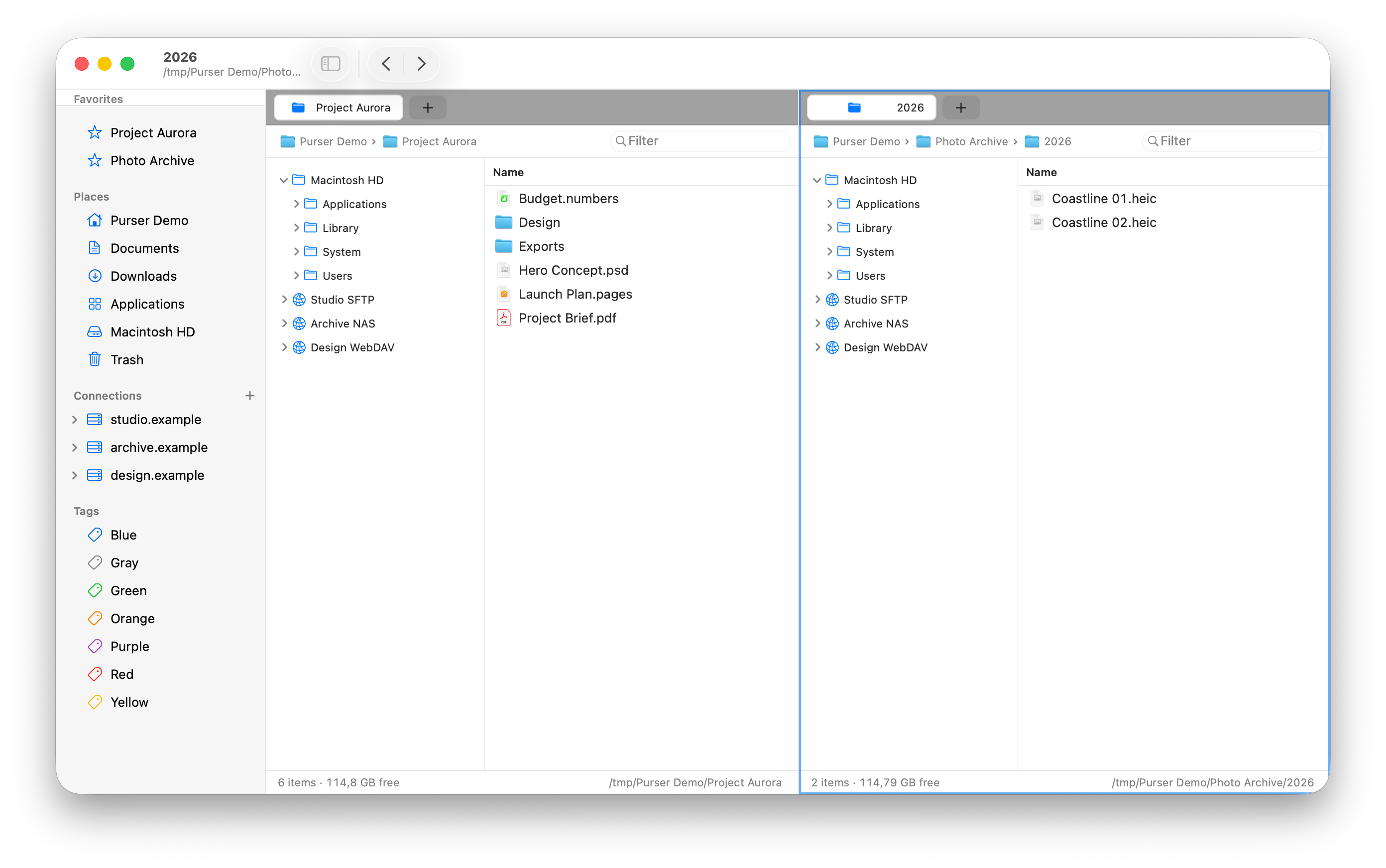
Two panes side by side, each with its own tabs, history and view mode. The folder you compare against is already open.
Transfers run in a visible background queue you can pause, resume or cancel. No modal wall, no lost work when something conflicts.
SFTP, SMB, WebDAV and a ZIP archive open exactly like a local folder—same shortcuts, same drag and drop, same panes.
Every place follows the same rules. Put it in a tab, give it a pane, drag files through it and return to the exact layout later.
Folders, mounted volumes and Trash stay fast and familiar.
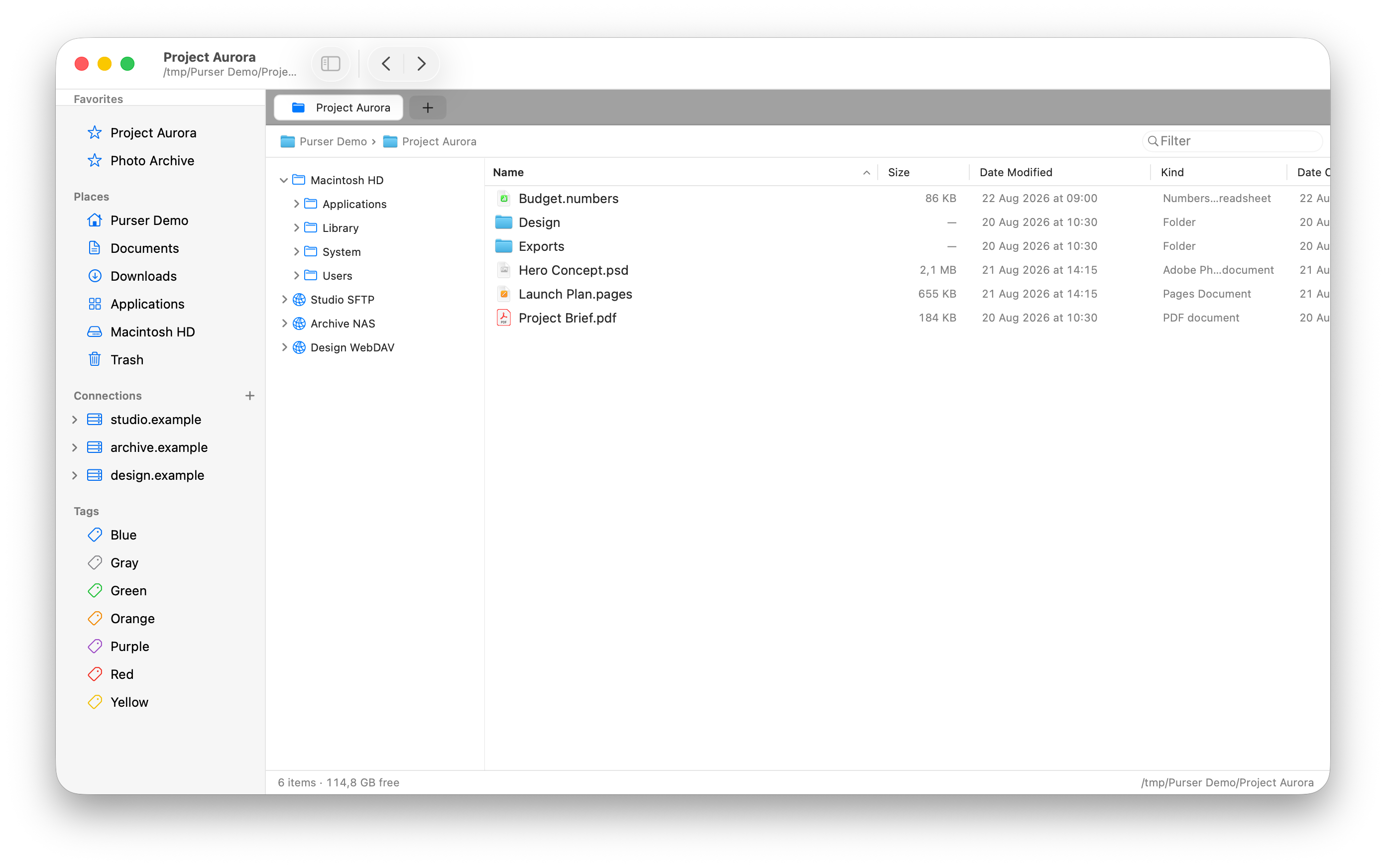
Drag files to a tab and hold. Purser opens that location beneath your pointer; keep navigating, then drop exactly where the files belong.
Pick up one file or a whole selection from any pane.
Hold over a tab and it springs open beneath your pointer.
The destination is visible before you let go.
Transfers keep running in a visible queue. Pause, resume or cancel them without losing the files you were working on.
See both full paths, modified dates and file sizes before choosing Replace, Keep Both or Skip.
Optional SHA-256 verification proves the destination matches the bytes that left the source.
Stack replacement, regex, token and sequence rules while conflicts stay visible before execution.
Browse deleted items and put them back where they came from instead of treating Trash as a dead end.
Instant filtering, indexed FTS5 queries and ripgrep-style content scanning.
Quick Look plus native previews for Markdown, JSON, CSV and hex content.
Permissions, extended attributes, quarantine, signatures, hashes and Finder tags.
Duplicate detection and a drill-down disk-space treemap that handles hard links correctly.
Browse Trash, restore to the original path and keep destructive actions explicit.
Command palette, Finder or Commander keymaps, and a generated shortcut cheat sheet.
Purser restores windows, panes, tabs and saved workspaces without turning your file activity into an account or analytics stream.
Purser is distributed directly, so it can use the file-system access a file manager needs. Apple still checks it: the app and its disk image are signed with a Developer ID certificate and notarized, and the ticket is stapled for offline verification.
One arm64 disk image, signed with a Developer ID Application certificate.
The DMG opens on the familiar drag-to-install window. Nothing runs an installer script.
macOS checks the stapled notarization ticket, so there is no Gatekeeper detour—just the standard first-open confirmation.
No. Purser ships as an Apple-notarized DMG signed with a Developer ID Application certificate, with Hardened Runtime and library validation enabled. The notarization ticket is stapled, so macOS can verify the app even without a network connection.
Purser needs macOS 15.0 or later on an Apple silicon Mac. It is built as an arm64 application; there is no Intel build.
No. There is no Purser account and no sign-in. Purser collects no telemetry, no analytics, no device fingerprints and no crash-report uploads, and it never uploads the names, paths or contents of your files.
Into the macOS Keychain. Passwords, private keys and other connection secrets are never written into connection files, and they are never written to CloudKit.
Saved connections cover SMB, AFP, NFS, WebDAV(S), FTP(S) and SFTP, with known-host verification and ssh_config support on SFTP. iCloud Drive, providers under macOS CloudStorage and available Synology Drive sync tasks appear beside local places; ZIP, TAR and TAR.GZ archives open as browsable read-only locations.
It runs alongside it. Purser reads and writes Finder tags, uses Quick Look, and works within the same macOS permission model, so you can keep using Finder wherever you prefer it.
Purser checks one signed HTTPS appcast, daily or when you choose Check for Updates. It shows you the version and notes first, verifies the download against its embedded EdDSA public key, and installs only after you agree.
Yes. A command palette and one command registry back the menus and the generated shortcut cheat sheet, with Finder-compatible or Commander keymaps. Rules, watch folders, AppleScript and Shortcuts are available, and the MCP server for assistants is off by default, scope-limited and approval-gated.
English and Dutch, using system-native localization resources.
Built for macOS 15.0 or later on Apple silicon. Version 1.0.6.